Scraping Star Wars movies and an eCommerce website
We’ll use the following packages for this programming exercise:
library(tidyverse)
library(rvest)
library(polite)
Star Wars
For this part of the programming exercise we’ll scrape information on some Star Wars movies from https://rvest.tidyverse.org/articles/starwars.html and save it as a tidy data frame in R.
First, though, we’ll read the source code of the page and store it as an object we can access and parse in R.
Read the source code of the page and store it as star_wars_html.
Hint 1
Read in the page source code with read_html() and pass the URL of the page, https://rvest.tidyverse.org/articles/starwars.html as the argument of this funtion.
___ <- read_html("https://rvest.tidyverse.org/articles/starwars.html")
Solution
Assign the result of read_html() to star_wars_html.
star_wars_html <- read_html("https://rvest.tidyverse.org/articles/starwars.html")Titles
Before we get started, let’s first take a note of the movie titles.
Scroll through the website and list the titles of the movies. There are seven movie titles on this page. They include:
- The Phantom Menace
- Attack of the Clones
- Revenge of the Sith
- A New Hope
- The Empire Strikes Back
- Return of the Jedi
- The Force Awakens
The next step is to identify the CSS selector that is associated with each title. We’ll use the Selector Gadget to help identify the CSS selectors associated with the items we’re interested in scraping. Selector Gadget is an open source extension for the Chrome browser that helps users find elements of an webpage easier. Go to this page to install the extension. When the Selector Gadget is installed, you should see its icon,  , in your task bar.
Next, we need to find the CSS selector that is associated with the titles of each Star Wars movie. Click the icon and click on one of the titles. Click on another one.

Notice that the text you clicked on (that you wish to scrape) is highlighted in green. Other pieces of text with the same CSS selector are highlighted in yellow.
We can see that the text in green/yellow include the seven titles, and an additional element, the text that reads “ON THIS PAGE”. This last piece of text is not something we want, therefore we unselect it by clicking on it, which changes the highlight to red.
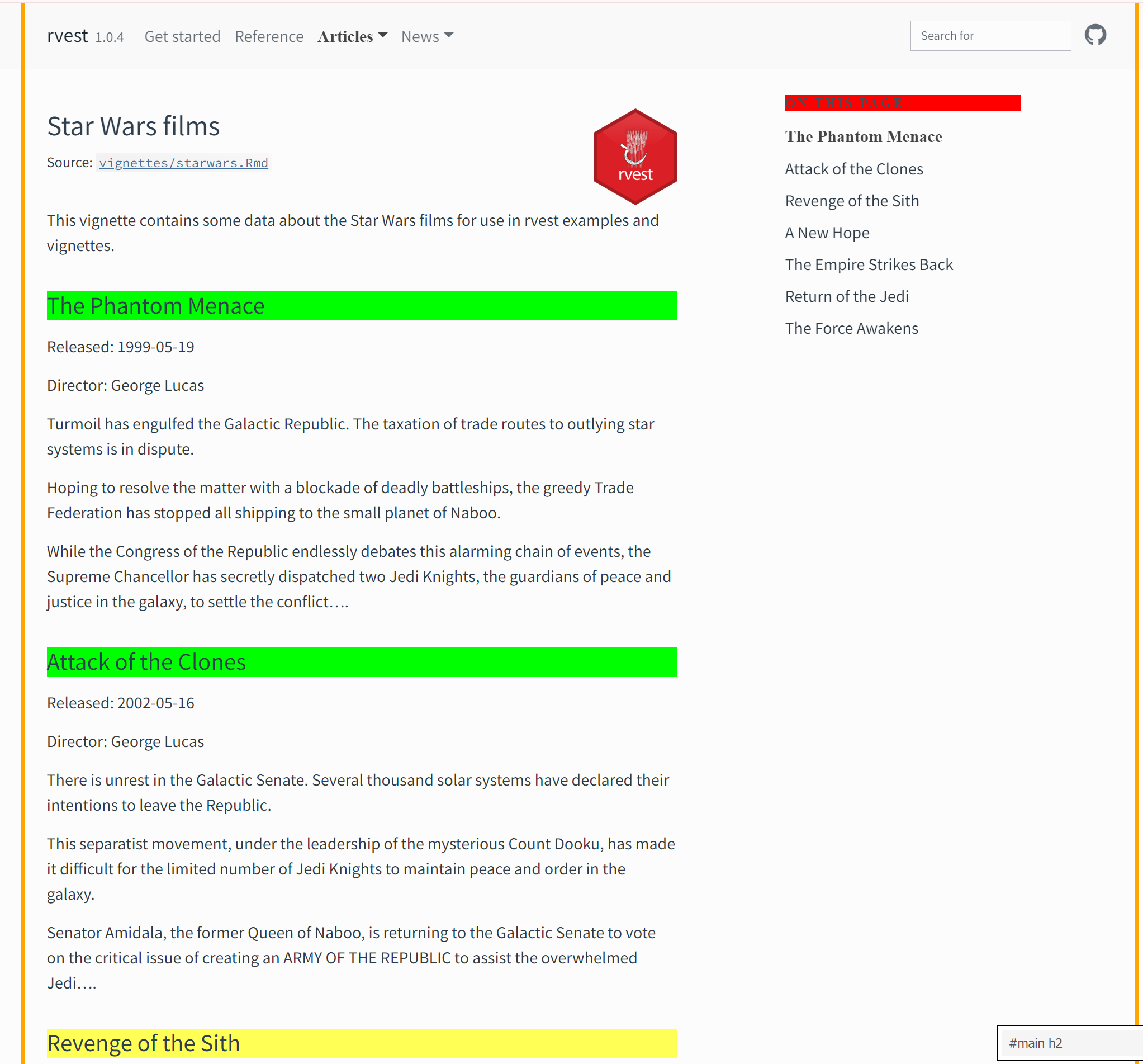
Now, we have our seven titles in green/yellow that we want to scrape. In the bottom right corner, we can see the CSS selector associated with just these seven titles. We will use this information to extract the titles from the page source code we saved earlier.
First, run the code below and inspect the result. Then, re-run with html_text2() instead of html_text() in the last step of the pipe. What is the difference between these functions? Which is preferable, and why?
Hint 1
Swap html_text() with html_text2().
titles <- star_wars_html |>
  html_elements("#main h2") |>
  html_text2()

titles
Solution
html_text() returns the raw underlying text, including any white spaces, HTML code, etc. html_text2() tries to simulate how the text is displayed in the browser, i.e., cleans up the text. You can find out more about these functions in the function documentation. In this case, html_text2() is preferable.
titles <- star_wars_html |>
  html_elements("#main h2") |>
  html_text2()

titles
Release dates
Next, let’s extract the release dates. We can follow the same process as above.
Click on a released date that you hope to scrape. Click on any yellow text you wish to exclude that has the same element tag. Click on a second released date. Again, click on any yellow text you wish to exclude.
Once you completed this process, you should see an element tag for just the released dates of section \> p:nth-child(2).
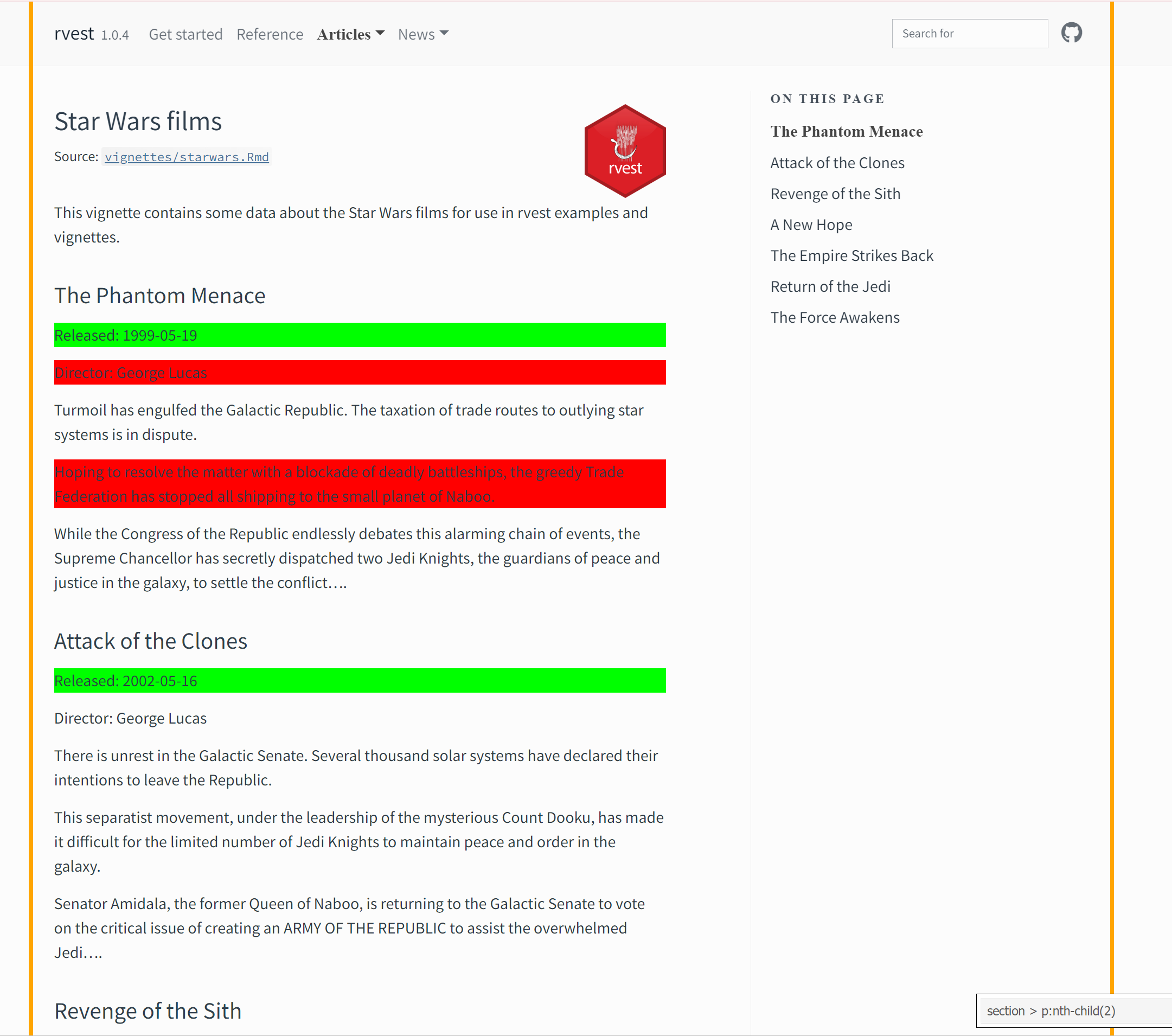
Use this information to extract the seven released dates and save them as an object called release_dates.
Hint 1
Extract HTML elements with the CSS selector "section > p:nth-child(2)“. We use html_elements() and not html_element() since there are multiple release dates we want to extract.
___ <- star_wars_html |>
  html_elements("section > p:nth-child(2)") |>
  ___

release_dates
Hint 2
Then, clean up the text with html_text2().
___ <- star_wars_html |>
  html_elements("section > p:nth-child(2)") |>
  html_text2()

release_dates
Solution
Finally, assign the resulting vector to release_dates, and view the contents of release_dates.
release_dates <- star_wars_html |>
  html_elements("section > p:nth-child(2)") |>
  html_text2()

release_dates
Data frame of titles and release dates
Now we’re ready to put everything we scraped together in a data frame, thus converting unstructured data from the web into a tidy data frame in R.
Create a tibble called star_wars with two columns: title and release_date. This tibble should have seven rows, one for each movie scraped, and contain information from the titles and release_dates vectors you previously created. Confirm that you have correctly created the tibble by printing it out.
Hint 1
Create a tibble with tibble() and call it star_wars. This tibble will have two columns (variables), we define these separated by a comma in the tibble() call.
star_wars <- tibble(
  ___ = ___,
  ___ = ___
)
Hint 2
The variables will be called tibble and release_date.
star_wars <- tibble(
  title = ___,
  release_date = ___
)
Solution
We assign the vectors titles and release_dates that we had previous extracted and stored to these variables. And we finally view the contents of the new data frame we created, star_wars.
star_wars <- tibble(
  title = titles,
  release_date = release_dates
)

star_wars
Working with scraped eCommerce pages
In the last Code Along activity, you wrote a function to scrape eCommerce data from multiple pages. In this part of the programming exercise, we are going to practice working with numerical and text data that you scraped from this website.
Run the following code to load these data from a CSV file called items-80.csv, and save it as ecomm.
Take a glimpse at the ecomm data frame. How many observations does the data frame have? What does each observation represent? How many variables does the data frame have? What are they?
Solution
ecomm has 80 observations, each observation is an item being sold on the eCommerce website. And ecomm has 3 variables, these are title, url and price.
glimpse(ecomm)Start by making a histogram of price using tools from the ggplot2 package in the tidyverse.
Hint
Use the functions ggplot() and geom_histogram() to make your plot. Play around with the binwidth, and add appropriate labels.
Hint
Below is the general structure you can use to create this plot.
ggplot(___, aes(x = ___)) +
  geom_histogram(binwidth = ___) +
  labs(
    title = "___",
    x = "___",
    y = "___"
  )
Solution
A binwidth of 5 seems reasonable. You can try other values as well.
ggplot(ecomm, aes(x = price)) +
  geom_histogram(binwidth = 5) +
  labs(
    title = "Price of eCommerce data",
    x = "Price",
    y = "Count"
  )
Next, you’ll work with text data to discover more patterns. Suppose you’re interested in prices of shorts on this eCommerce site, but the titles of items that would be consideted “shorts” can be all over te place.
Create a new variable, shorts, that takes the value TRUE if the title of an item contains the word short or Short, and FALSE otherwise. Save the data frame with this new variable.
Hint 1
Use the mutate() function to create the new variable.
ecomm <- ecomm |>
  mutate(___ = ___)
Hint 2
Use the if_else() function to check that the title contains the specified text strings, and set the value of the new variable shorts to TRUE if yes, and FALSE if no.
ecomm <- ecomm |>
  mutate(shorts = if_else(___, TRUE, FALSE))
Hint 3
Use the str_detect() function to determine whether title contains the text string short or Short, where “or” is denoted with |.
str_detect(title, "short|Short")
Solution
Putting it altogether…
ecomm <- ecomm |>
  mutate(shorts = if_else(str_detect(title, "short|Short"), TRUE, FALSE))
You just created an indicator variable!
Using this variable, evaluate how the average price of shorts compare to the average price of other items. How do the standard deviations of the prices of these two groups of items compare?
Hint
Use group_by() and summarize() for this task.
ecomm |>
  group_by(___) |>
  summarize(___)
Solution
Shorts, on average, sell for $8 lower than other items. The prices of shorts are less variable (lower standard deviation) than other items.
ecomm |>
  group_by(shorts) |>
  summarize(
    mean = mean(price),
    sd = sd(price)
  )
Asking for permission
Just because you have the tools to scrape data doesn’t mean you should or have permission to do so. We will use the bow() function from the polite package in R to introduce the client to the host and ask for permission to scrape. Use the following code to ensure that we had permission to scrape Star Wars! Note that the input for bow() is a URL, provided as a character string.
bow("https://rvest.tidyverse.org/articles/starwars.html")<polite session> https://rvest.tidyverse.org/articles/starwars.html
User-agent: polite R package
robots.txt: 1 rules are defined for 1 bots
Crawl delay: 5 sec
The path is scrapable for this user-agentIndeed, we had permission to scrape that website!
Determine whether you can scrape data from the following websites based on the output shown below.
bow("https://espn.com")<polite session> https://espn.com
User-agent: polite R package
robots.txt: 114 rules are defined for 11 bots
Crawl delay: 5 sec
The path is not scrapable for this user-agentbow("https://x.com/home")<polite session> https://x.com/home
User-agent: polite R package
robots.txt: 24 rules are defined for 7 bots
Crawl delay: 5 sec
The path is not scrapable for this user-agentbow("https://www.bettycrocker.com")<polite session> https://www.bettycrocker.com
User-agent: polite R package
robots.txt: 15 rules are defined for 1 bots
Crawl delay: 5 sec
The path is scrapable for this user-agentbow("https://www.zillow.com")<polite session> https://www.zillow.com
User-agent: polite R package
robots.txt: 244 rules are defined for 8 bots
Crawl delay: 5 sec
The path is scrapable for this user-agent
Solution
We do not have permission to scrape espn.com or x.com. We do have permission to scrape bettycrocker.com and zillow.com.
Takeaway
The takeaway is that – just because you can doesn’t mean you should scrape the data!